

First use
This guide takes you from zero to a working agent. The whole process takes less than 10 minutes.
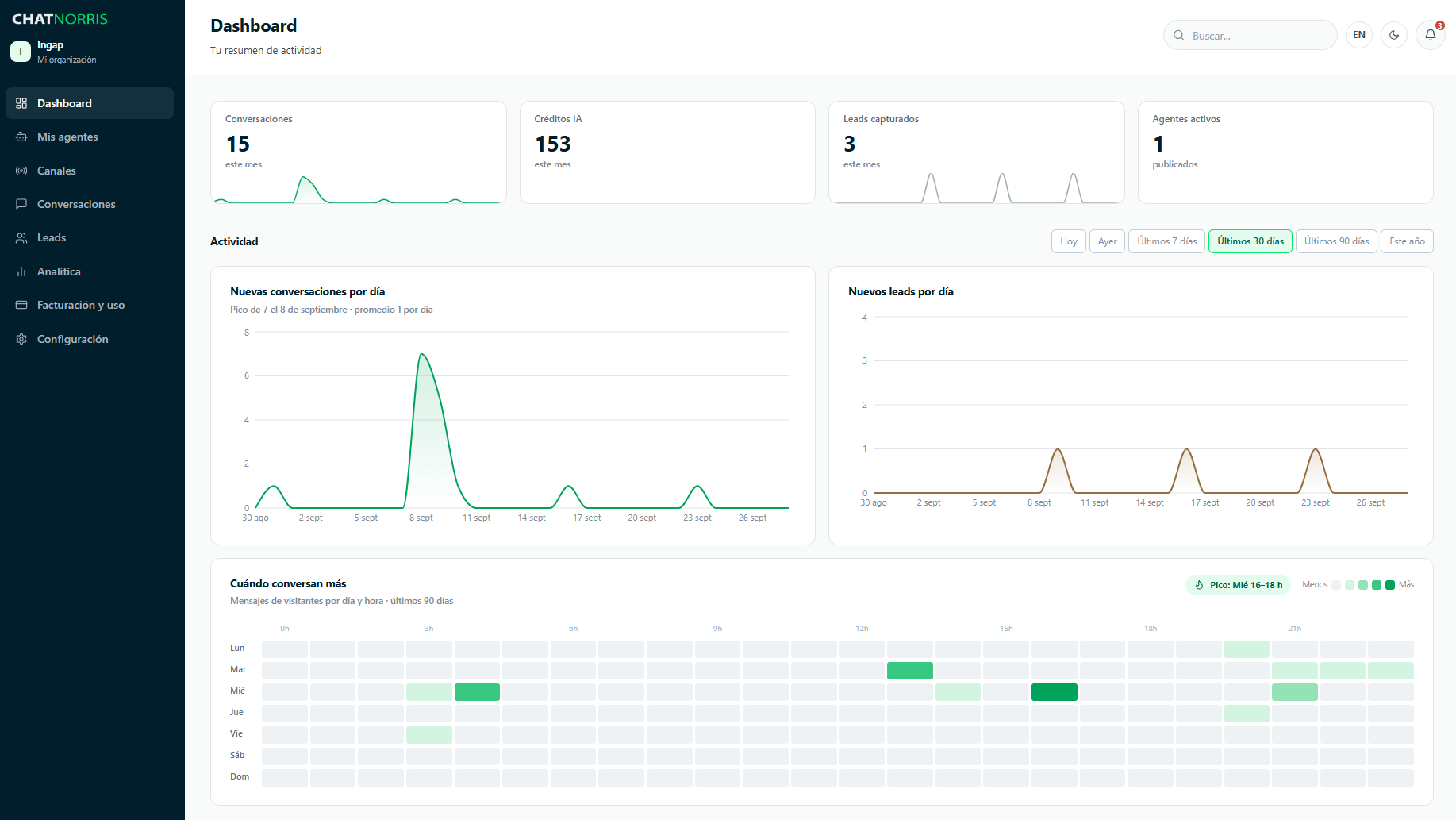
Step 1 — Create the agent
1
Go to My agents
In the side menu, click My agents.
2
Click New agent
Click New agent. A 6-step wizard opens.
3
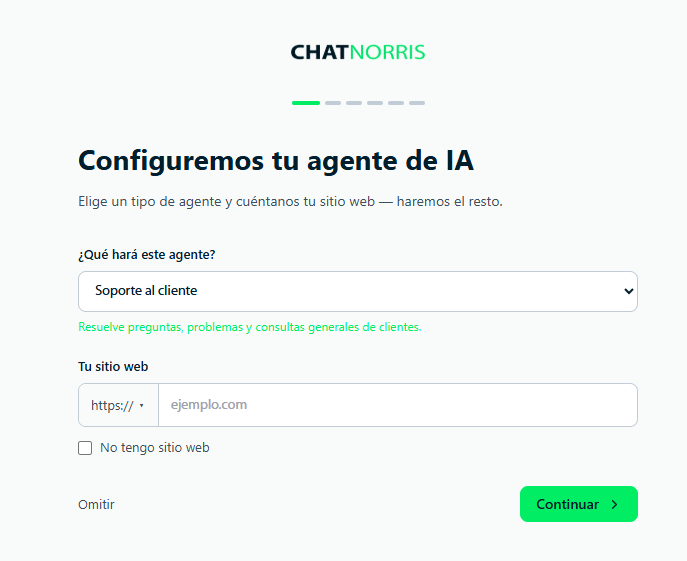
Choose the agent type and your website
In What will your agent do? choose a template (customer support, sales, bookings, e-commerce and more) and fill in the fields it asks for. In Your website enter your company’s URL and click Analyze my site: ChatNorris scans it to detect your brand, write the instructions and train the agent with your content. If you don’t have a site, check I don’t have a website.
4
Review what was detected and the content
Confirm the Business name and What does your business do? and click Looks good. Then, in Train your agent with your site, click Train and continue to add your site’s pages to the knowledge base.
5
Choose the AI model
You can keep the model marked RECOMMENDED and the Agent instructions generated from your template. Each option shows how many credits it consumes per message.
6
Design your widget and create the agent
Adjust the color, logo, agent name and welcome message while watching the Preview. Click Create agent: the agent is created as a Draft in My agents, with the To publish checklist (knowledge base, customize, test in Playground and connect a channel).
Step 2 — Train it with your content
If you added your site in the wizard, the agent already has a first source. Add more information about your company so it answers accurately.1
Go to Knowledge Base
In the agent menu, click Knowledge Base.
2
Add a source
Click Add source and choose where the content comes from, for example:
- Crawl a site, a sitemap or a URL list — ChatNorris reads the pages and saves their text.
- Documents — upload PDF, Word or plain text.
- Text — paste any content: policies, price lists, catalogs.
- Frequently asked questions — question and answer pairs.
3
Wait for processing
Each source is processed in a few seconds or minutes depending on its size. See Knowledge Base.
Step 3 — Test it before publishing
1
Go to Playground
In the agent menu, click Playground. A test chat opens that doesn’t consume credits.
2
Ask real questions
Use questions your customers usually ask. Check that the answers are correct and consistent with your content.
3
Adjust if needed
If the answers aren’t what you expected, review the instructions in Settings → AI or add more content in Knowledge Base.
Step 4 — Publish and install
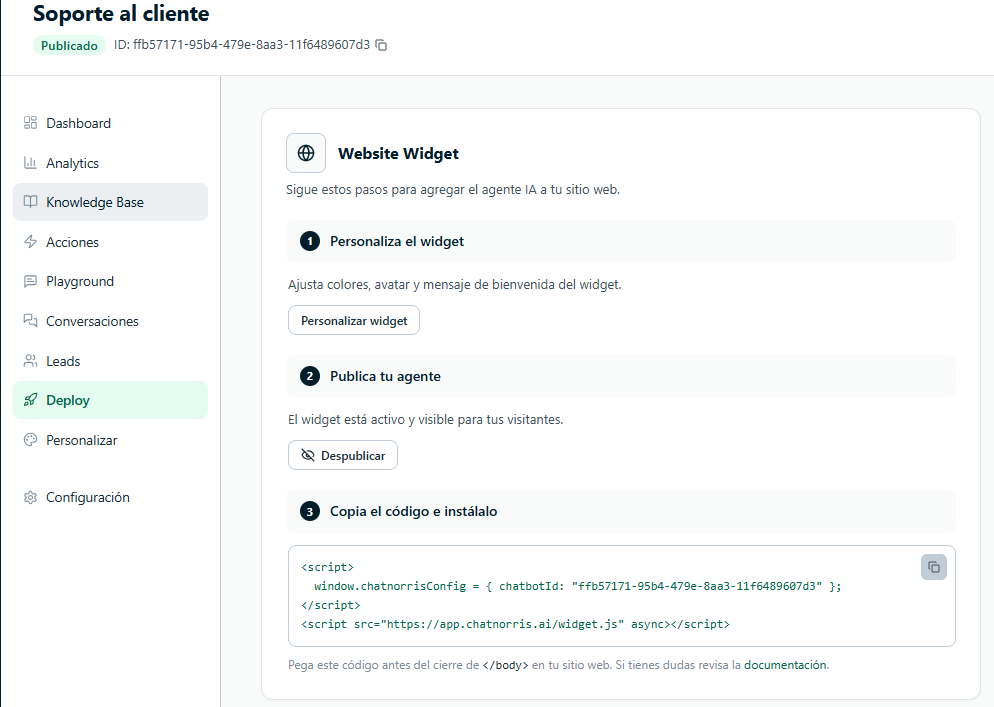
When the agent is ready, activate it from the agent’s Deploy tab:- Widget on your website
- WhatsApp, Instagram and other channels
- In Deploy, open the Web channel.
- Publish the widget with the Publish or unpublish the widget toggle. Until it’s published, your visitors won’t see it even if you install the code.
- Copy the widget code and paste it before the closing
</body>tag on every page where you want the chat.
Your agent is now live! Now you can:
View conversations
Review chats in real time and reply when needed.
Review your metrics
Measure your agent’s impact from the analytics dashboard.