

Leads
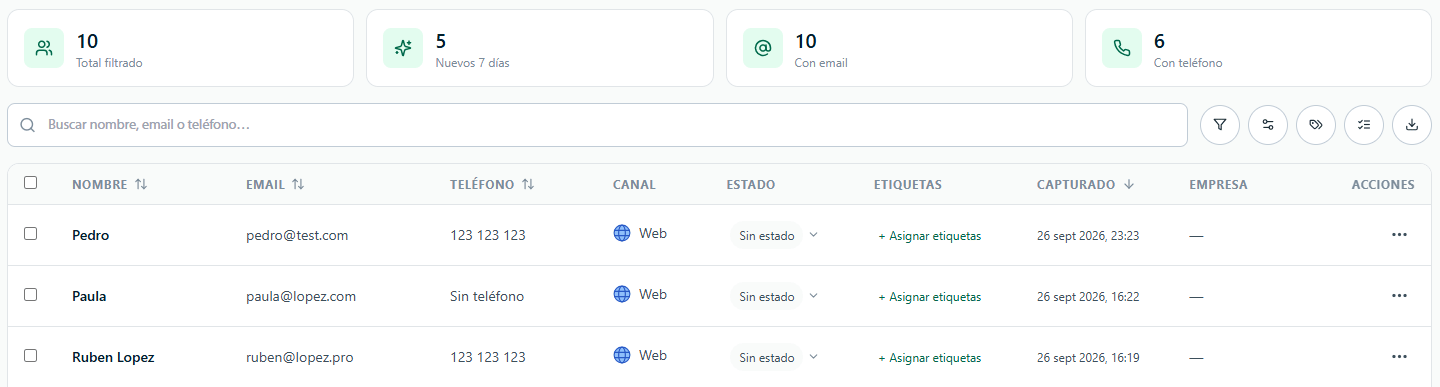
The Leads section brings together the contacts your visitors left while talking to your agents, across all channels (web, WhatsApp, Instagram, Telegram, Messenger, and Email). From here you can classify them with statuses and tags, review their conversation, see their appointments and payments, and export them.- All agents: side menu → Leads.
- A single agent: My agents → [your agent] → Leads. It shows the same thing, but only with that agent’s leads (without the agent filter).
How is a lead captured?
A lead is recorded in two ways:- Lead Form — the agent shows a contact form, either when the chat opens (if you set it as required) or at the point in the conversation you define.
- Passive capture — the visitor mentions their details during the chat (“my email is…”) and ChatNorris recognizes and saves them without showing any form.
My agents → [your agent] → Actions → Lead Form. See Agent actions → Lead Form.
There’s one lead per conversation. If the same person leaves the same email or phone in several conversations, each one generates its own lead, and the table tells you with N captures (see Returning customers).
Indicators and top buttons
Above the table you’ll see:- total leads
- new in 7 days
- with phone
- qualified — only appears if you have a status called “Qualified”.
Status tabs
Below the indicators there’s one tab for each pipeline status, plus All and No status (leads you haven’t assigned any status to yet). Each tab shows how many leads it has, taking into account the search and the filters applied.Search and filter
The filter bar includes a search box (Name, email or phone…) and pill-shaped filters:
Filters combine with each other. To remove one, click the X on its pill. You can also choose how many leads to see per page.
Table columns
The first column, Contact, is always visible: it shows the lead’s name and email. If that email or phone was captured in several conversations, the N captures badge appears. If the lead is missing the name, email, or phone but the same person left it in another conversation, the value is shown in italics, with the channel and date it comes from. The other columns can be shown or hidden:Columns panel
Click Columns (on the right of the filter bar) to open the side panel. There you can:- Turn each column on or off with its switch.
- Reorder them by dragging from the icon on the left (or with the arrow keys on that icon). Standard and custom columns are each ordered within their own group.
- Create and delete custom columns.
Custom columns (Premium)
Custom columns are available exclusively on the Premium plan.
Lead panel
Click a row to open the lead’s side panel. It includes:- Details — Name, Email, Phone, Company, Job title, and your custom columns. Click the pencil on a field to edit it.
- Appointments — the lead’s appointments (upcoming, past, cancelled, or with payment pending), with a link to the conversation. It appears if the agent has Google Calendar or Encuadrado connected, or if the lead already has appointments.
- Payments — amount, item, date, payment gateway, and link to the conversation. It appears if the lead has payments or if the agent has the Payment Action enabled.
- Status — choose a status; click the active one again to leave it with no status.
- Tags — add or remove tags.
- Conversation — the agent and channel it was captured through, the visitor’s last question and the agent’s last answer, and the Open full conversation → link.
- History — when and by which agent this email was captured. If it was captured several times, it shows how many and the date of the first.
Returning customers
ChatNorris recognizes leads that share an email or phone (of at least 8 digits) in any agent or channel of your organization as the same person. It doesn’t merge them: each conversation is still its own lead, data isn’t copied from one lead to another, and the AI agent doesn’t receive them. What changes is what you see:- The N captures badge also counts captures by phone, and the Returning filter shows only these people.
- Data missing from a lead is filled in, in italics, with data from another conversation (with the channel and date).
- The lead panel and the conversation’s Details panel show the Returning customer summary and that person’s other conversations.
Bulk actions
Check the box on one or more rows (or the one in the header to select all on the page). The filter bar is replaced by a bar with:- Change status
- Tag — adds tags to the selected leads.
- Export CSV — exports only the selected ones (Premium).
- Delete — asks for confirmation.
Statuses and tags
Click Statuses and tags to open the management panel, with two tabs:- Statuses — your follow-up funnel (for example, “New” → “Contacted” → “Won”). A lead has a single status at a time. Drag the statuses to change the order of the tabs.
- Tags — free-form classifications to segment and filter. A lead can have several. Deleting a tag removes it from the leads, but doesn’t delete any lead.
Only owners and admins can manage statuses and tags.
Export leads to CSV
Exporting is available on the Premium plan.
- Export CSV · N (top right) downloads all leads that match the search, the tab, and the filters applied.
- Export CSV in the bulk actions bar downloads only the selected leads.
Frequently asked questions
Do leads from WhatsApp, Instagram, and other channels also show up here?
Do leads from WhatsApp, Instagram, and other channels also show up here?
Yes. Leads from all channels are consolidated in the same section. Use the Channel filter to see them separately.
What does “N captures” mean?
What does “N captures” mean?
That the same email was captured in several conversations. Each conversation generates its own lead; the table marks it so you know it’s the same person. In the lead panel, the History section shows each capture.
Does the bot ask for contact details automatically?
Does the bot ask for contact details automatically?
If you turn on the Lead Form in Actions, the form appears according to the criteria you define. Also, with passive capture the agent saves the details the visitor mentions in the chat, without showing any form.
Can I delete a lead?
Can I delete a lead?
Yes, if you’re an Owner or Admin. From the lead panel (trash icon) or by selecting several and using Delete in the bulk actions bar. It asks for confirmation. Operators can’t delete leads.