

Connect messaging channels
In addition to the web widget, ChatNorris integrates with WhatsApp Business, Instagram Direct, Telegram and Facebook Messenger so your agents automatically reply to the messages you receive on those channels. There’s also an Email channel, with a setup that’s very different from these four — see the separate guide Connect the Email channel.Availability by plan: Telegram is included in all plans, Free too; WhatsApp, Instagram and Messenger from Standard; Email, only on Premium. See Billing and payments.
Prerequisites
- WhatsApp Business
- Instagram Direct
- Telegram
- Messenger
- An active Meta Business Suite account.
- A phone number registered in the WhatsApp Business API (different from a personal number or a WhatsApp Business App number).
- Admin access to the Meta account.
- A payment method in Meta’s WhatsApp Business account: Meta charges for messages beyond the free tier. See Meta costs on WhatsApp.
Connect a channel
1
Go to the agent's Deploy section
Go to
My agents → [your agent] → Deploy. The agent you choose is the one that will handle that channel’s messages.2
Choose the channel
In the Available group, click WhatsApp, Instagram, Telegram or Messenger. The connection opens in a side panel, without leaving the list.
3
Authorize according to the chosen channel
- WhatsApp
- Instagram
- Messenger
- Telegram
Click Connect with Facebook. Meta’s Embedded Signup wizard opens, which lets you create or choose your Business, your WhatsApp Business Account (WABA) and your number, all without leaving ChatNorris or going to developers.facebook.com.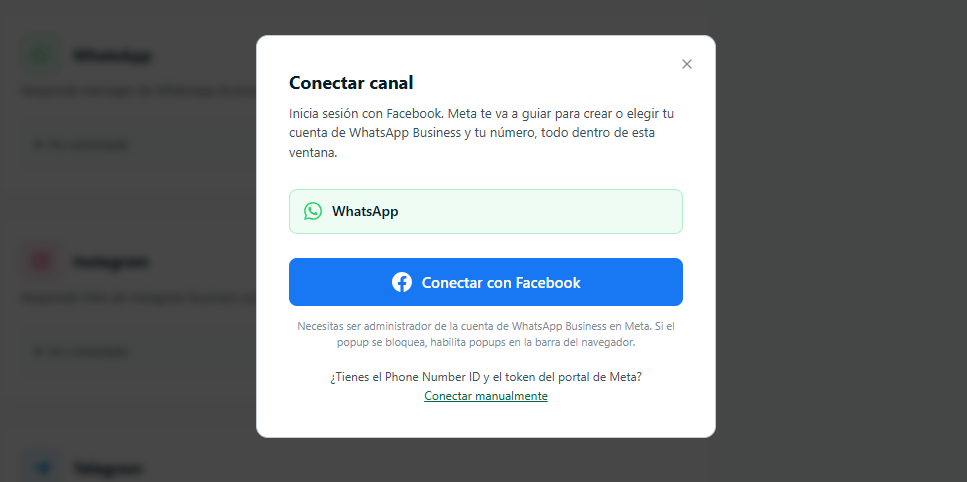
4
Select the account (if you have several)
If your Meta account has access to multiple WhatsApp numbers or Pages, you’ll see a list to choose which one to connect. Doesn’t apply to Telegram.
5
Confirm the connection
ChatNorris sets up the channel automatically. The process takes a few seconds.
View and manage your channels
There are two places to see your channels:- Deploy, in each agent (
My agents → [your agent] → Deploy): shows that agent’s channels grouped into Connected, Available and Not in your plan. This is where you connect, configure, pause and disconnect each channel. - Channels, in the side menu: a read-only view with the channels of all your agents. It shows which channels each agent is on, which account is connected, how much it talks and whether anything needs attention. To connect or change a channel, you always go to the agent’s Deploy.
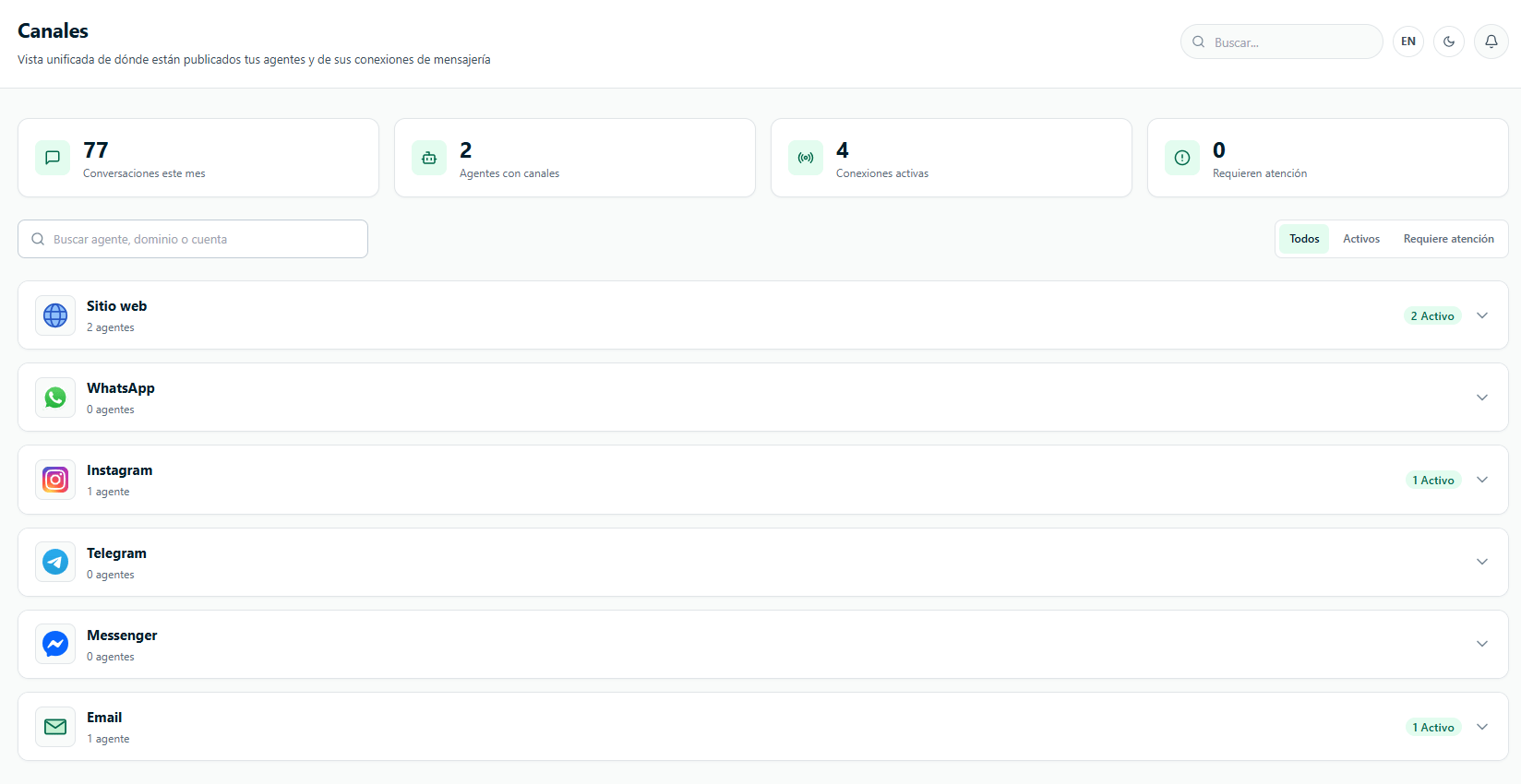
The Channels section
At the top you’ll see a summary with the active connections, how many of your agents are deployed on some channel, the conversations this month and how many connections need attention. You can search by agent, domain or account, and turn on Only those needing attention. There are two views, which you can switch with the View selector:- Matrix: channels in rows and your agents (deployed and drafts) in columns. Rows are grouped into Connected, Available, Not in your plan and Coming soon, and each group can be collapsed. Each cell shows the connected account (or the domains where the widget loaded), the month’s conversations and the last activity. If the agent isn’t on that channel, the cell says Connect (or See plans if your plan doesn’t include it).
- List: one block per channel with its connections (agent, account, conversations and last activity). Each channel can be collapsed, and you have Collapse all / Expand all.
Conversations and activity per channel are shown with Advanced Analytics (from Standard). Without it, the cells only indicate that the channel is Connected.
Connection statuses
On the Website channel, the panel shows which domains the widget loaded on. Local or temporary domains are marked as Test. If you want to limit where the widget loads, do it from the agent’s
Settings → Security.
Configure a channel in Deploy
In Deploy, for each channel you’ll see the connected account (phone number or username), the language, the inactivity close, the conversations of the last 7 days and the Active toggle. To change the language or the inactivity close, check the Telegram webhook status or disconnect a channel, click it to open its settings panel. When you disconnect, ChatNorris asks you to confirm first.Pause or reactivate a channel
If you need to temporarily turn off a channel without deleting it, switch off its Active toggle in Deploy. The channel stops replying to messages but keeps its configuration. To reactivate it, switch the toggle back on.Disconnect a channel
To permanently disconnect a channel, open it in Deploy and use Disconnect in its settings panel (ChatNorris asks you to confirm). This action can’t be undone and you’ll have to connect the channel again if you change your mind.How the agent replies on each channel
- Text formatting. Only the web widget shows bold, headings and formatted links. On the other channels ChatNorris adapts the reply before sending it: on WhatsApp, bold shows as WhatsApp bold; on Instagram, Messenger and Telegram it’s sent as plain text; and on all of them, a link is sent as “text: URL”. The last-message preview in Conversations doesn’t show formatting symbols either.
- Contact details. ChatNorris saves in the conversation the details the channel provides: the number on WhatsApp, the @username on Telegram and the name and @username on Instagram. If the visitor later leaves their details, the lead takes the phone number that was already in the conversation. See Conversations → Details panel.
- Instagram and Messenger stories. The agent understands when the visitor reacts to one of your account’s stories, replies to it, mentions your account in their own story or sends just an emoji. If Meta delivers the story’s image, it can comment on it; if not, it doesn’t make up its content. It replies briefly and with a short question.
- Voice notes. The agent understands the audio messages people send you on WhatsApp, Instagram, Messenger and Telegram. See Voice notes.
- Lead Form. It’s filled in by chatting, one required field per message. See Lead Form on channels.
- Email alerts. Channel conversations the bot handled only arrive in a daily summary, not in one email per conversation.
Voice notes
When a customer sends you a voice note on WhatsApp, Instagram, Messenger or Telegram, the agent transcribes it automatically and replies in text, as if the customer had typed. It uses your Knowledge Base and your actions just like with any message.- In the dashboard. In Conversations and in ChatNorris Inbox the audio appears with a player and the transcript below it, like on WhatsApp.
- With a person in charge. If someone on your team took over the conversation, the voice note is also transcribed so they can read it without having to listen to it. In that case the AI agent doesn’t reply.
- Maximum length. Notes up to 3 minutes are transcribed. If it’s longer, the agent asks the customer to summarize their question in writing or send a shorter audio.
- If it can’t be understood. If the audio is silent, very noisy or can’t be processed, the agent asks the customer to write it. The audio is still saved in the conversation.
- Text that comes with the audio. If the customer adds text (for example, on Telegram), it’s saved along with the transcript.
- Cost. Each voice note uses AI credits based on its length. See Credits for voice notes.
Voice notes work on all plans, on the channels each one includes: Telegram from Free, and WhatsApp, Instagram and Messenger from Standard. The agent always replies in text: for now it doesn’t send voice notes. The web widget’s microphone is browser dictation and doesn’t send audio.
Meta costs on WhatsApp
The WhatsApp Business API has usage costs that aren’t included in any ChatNorris plan: Meta charges them directly to your WhatsApp Business account. ChatNorris doesn’t charge or invoice these messages. Since October 1, 2026:- Meta gives 1,000 free service messages per month per phone number. They renew every month and don’t accumulate.
- From message 1,001 on, Meta charges each message based on the recipient’s country.
- Replies from the agent and the team, closing messages and payment links count. Messages your customers write to you aren’t charged.
- Template campaigns are always charged, from the first message.
View usage and undelivered messages
- Billing & usage → Usage shows the WhatsApp (Meta charges) card, with one row per number: Free used (out of the 1,000), Billed by Meta and Not delivered, with the reason for each failure. Only Owners and Admins see it. Meta resets the free tier on the 1st in your account’s time zone; ChatNorris counts by calendar month in UTC, so the figures can differ by a few hours at the end of the month.
- If Meta doesn’t deliver messages in a conversation, the conversation shows a warning with the reason (missing payment method, outside the 24-hour window, recipient unavailable or rejected by Meta).
- If Meta stops delivering messages, Owners and Admins get an alert by bell and email, at most once a day per number. It’s configured together with the Credits used up event in Notifications.
Frequently asked questions
Does the bot reply to all WhatsApp messages automatically?
Does the bot reply to all WhatsApp messages automatically?
Yes, when the channel is active, the bot automatically replies to all incoming messages. If an agent needs to handle a conversation in person, they can do a handoff from the Conversations panel.
Can I have several agents on the same WhatsApp number?
Can I have several agents on the same WhatsApp number?
No. Each WhatsApp number can be connected to only one agent at a time. The same applies to a Telegram bot or a Facebook/Instagram page: each one connects to a single agent.
How do I connect Telegram?
How do I connect Telegram?
Create a bot with @BotFather on Telegram, copy the token it gives you, and paste it when you connect the channel in ChatNorris (My agents → [your agent] → Deploy → Telegram → Connect). It doesn’t require a Meta account or Business Suite.
Are Instagram and Messenger available for all accounts?
Are Instagram and Messenger available for all accounts?
Yes, for all organizations on the Standard or Premium plan. On Free they appear as not included in your plan.
Does WhatsApp have an additional cost?
Does WhatsApp have an additional cost?
Yes. Meta charges your WhatsApp Business account directly for messages beyond the 1,000 free replies per month per number, and for all template campaigns. That cost isn’t included in your ChatNorris plan. See Meta costs on WhatsApp.
What happens if I delete the channel and connect it again?
What happens if I delete the channel and connect it again?
The history of previous conversations is kept in ChatNorris. Reconnecting creates a new channel but doesn’t delete earlier conversations.
Can the agent receive images or files?
Can the agent receive images or files?
Yes. When a customer sends an image or a PDF on WhatsApp, Instagram, Telegram, Messenger or Email, ChatNorris saves it in the conversation (you see it in the Conversations panel) and the agent takes it into account when replying. How much of the file it can “see” depends on the agent’s AI model. The agent’s replies are sent as text.
Does the agent understand voice notes?
Does the agent understand voice notes?
Yes, on WhatsApp, Instagram, Messenger and Telegram. It transcribes the audio and replies in text. Notes up to 3 minutes are transcribed, and each one uses AI credits based on its length. See Voice notes.
Can the agent reply with audio?
Can the agent reply with audio?
Not for now: the agent always replies in text, even if the customer sent it a voice note.
How does the payment link arrive on WhatsApp and Telegram?
How does the payment link arrive on WhatsApp and Telegram?
When the agent generates a cart payment link, on WhatsApp and Telegram it sends it as a button to pay, instead of a URL at the end of the text. If sending with a button fails, the message is sent with the link.
Can I connect my mailbox (email) the same way as WhatsApp or Instagram?
Can I connect my mailbox (email) the same way as WhatsApp or Instagram?
Not with this same flow. The Email channel is connected differently (email forwarding, not OAuth) and is documented separately — see Connect the Email channel.
Why don't my WhatsApp accounts show up when connecting?
Why don't my WhatsApp accounts show up when connecting?
The most common causes are:
- The Facebook account you used doesn’t have admin access to the WhatsApp Business account.
- The number is registered in the WhatsApp Business App (mobile), not in the WhatsApp Business API.
- The Meta Business Suite account isn’t verified.