

Integrations
The Integrations hub is the only place to connect, test, pause and disconnect the external accounts your Actions and your Knowledge Base sources use. Instead of entering credentials separately in each Action or each source, you connect the account once here and the rest of ChatNorris reuses it.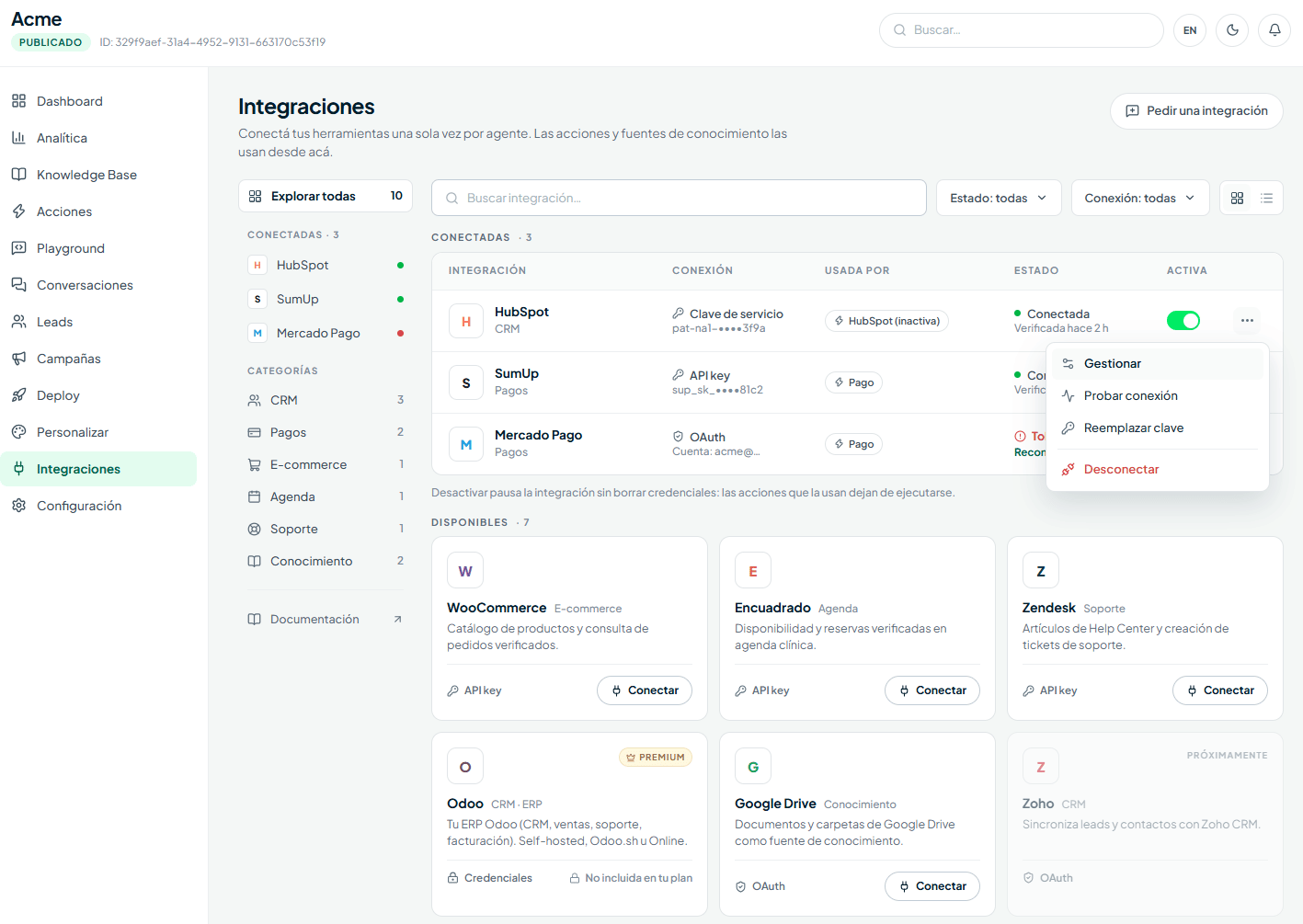
Where to find it
Open an agent’s detail and click Integrations in the side menu (My agents → [your agent] → Integrations).
The screen has two blocks:
- Connected — a table with each integration you’ve already connected in this agent: the masked key (only the last 4 characters are shown), which Actions and knowledge sources use it (Used by), its status and an Active toggle to pause it. Each row’s ··· menu has Manage, Test connection, Replace key and Disconnect.
- Available — the catalog of integrations you haven’t connected yet, with filters by status and connection type. If you can’t find the tool you use, the Request an integration button lets the ChatNorris team know.
Available providers
WooCommerce
Product catalog and verified order lookup. Powers the WooCommerce Action and the knowledge source of the same name.
Jumpseller
Products with live price and stock, verified order lookup, building a purchase with cart links, payment confirmation in the chat and the catalog as a knowledge source.
Zendesk
Help Center articles and support ticket creation. Powers the Zendesk source and the Zendesk Tickets Action.
Freshdesk
Public articles from your Freshdesk knowledge base and ticket creation/lookup. Powers the Freshdesk source and the Freshdesk Tickets Action.
Google Drive
Google Drive documents and folders as a knowledge source. See Knowledge Base → Google Drive.
Google Calendar
Real availability and appointments in your Google calendar. Powers the Google Calendar — Scheduling Action.
Google Sheets
Adds a row to the spreadsheet you choose for each contact the agent confirms or each Lead Form submission. Included in all plans, Free too.
Encuadrado
Verified availability and bookings in your clinic schedule. Powers the Encuadrado — Scheduling Action.
Odoo
Connection to your Odoo ERP (CRM, sales, support) — self-hosted, Odoo.sh or Online. Powers the Odoo Action.
Laudus
Your Laudus ERP (Chile): live stock and price, customer questions about their documents, resending invoices and receipts, the catalog in the Knowledge Base and leads as customers. Premium only.
HubSpot
Syncs confirmed leads as Contacts (and, optionally, company and Lead object) in your HubSpot account. Powers the HubSpot Action.
LeadConnector (GoHighLevel)
Creates or updates confirmed contacts in your LeadConnector/GoHighLevel sub-account, with an optional tag and note. Powers the LeadConnector Action.
Pipedrive
Creates in your Pipedrive the person, their company as an organization and a tagged Lead for each confirmed contact, with a note that links to the conversation. It also logs handoffs and appointments as activities.
SumUp
Generates payment links (Hosted Checkout) for a catalog of items from the chat. Powers the Payment Action.
Mercado Pago
Generates payment links (Checkout Pro) for a catalog of items from the chat — a single connection for all of Latin America. Powers the Payment Action.
Flow
Generates payment links in Chilean pesos (Webpay, Khipu and the other payment methods in your Flow account) from the chat. Designed for businesses in Chile. Powers the Payment Action.
Wompi
Generates payment links in Colombian pesos (card, Nequi, Daviplata, PSE, Bancolombia Transfer and SU+ Pay, depending on what you have enabled in Wompi) from the chat. Designed for businesses in Colombia. Powers the Payment Action.
Zapier and n8n also appear in the catalog, but they aren’t connected from here: they use a ChatNorris API key (Settings → API Keys). See Zapier and n8n.Cal.com and Calendly also appear in the catalog, in the Scheduling category, but they don’t require a connection: you set them up by pasting the event type’s public link directly in the Action. See Cal.com — Scheduling and Calendly — Scheduling.
Each provider requires your plan to include integrations (Standard or Premium; Odoo and Laudus are Premium only; Cal.com and Google Sheets are also included in Free). Zapier and n8n require API access (Standard or higher). Both Zendesk capabilities (tickets and knowledge base) also require ChatNorris to have enabled the pilot for your organization. Freshdesk (tickets and knowledge base), LeadConnector, Flow and Wompi are available to all organizations from Standard. Integrations marked Beta are enabled on request: see Beta integrations. See each provider’s status in the Connection statuses section below.
Connect a provider
1
Open the provider you want to connect
Click its card in the Integrations list. The detail screen opens with the connection form.
2
Fill in the credentials
Each provider asks for different details:
- WooCommerce — store URL, Consumer key and Consumer secret (generated from WooCommerce → Settings → Advanced → REST API).
- Jumpseller — your store’s API login and token (in Jumpseller: Account › Preferences, API and MCP card). The account that owns the token needs permissions for products, orders, hooks and settings. See Jumpseller.
- Zendesk — you sign in with your Zendesk account (OAuth); you don’t enter any credentials by hand.
- Freshdesk — your account’s subdomain (
tuempresa.freshdesk.com) and a Freshdesk agent’s API key (in Freshdesk: profile picture → Profile settings → View API key). We recommend a dedicated agent (for example “ChatNorris”), with permission to create and view tickets: the API key has the same permissions and is who signs the tickets. If you use your own domain, still enter your.freshdesk.comsubdomain (you can see it in Admin → Portals). - Google Drive — you sign in with your Google account (OAuth) and then choose specific files/folders with the Google picker.
- Google Calendar — you click Connect with Google and sign in with your Google account. Google asks you for two Calendar permissions: view your busy times and create events. Leave both checked; if you uncheck either, the connection isn’t saved. ChatNorris only sees the busy times on your primary calendar, without titles or details, and only creates the appointments the visitor confirms. Disconnecting revokes access in Google and turns off the Action, without deleting its configuration.
- Encuadrado — your Encuadrado API key.
- Odoo — your instance URL, database (detected automatically if your server has only one), user and API key.
- Laudus — the company’s RUT, and the username and password of a Laudus API user. See Laudus.
- HubSpot — a service key (Development → Keys → Service keys in HubSpot; an existing Private App token also works). The contacts scopes are required; the companies and leads scopes only if you’re going to turn on those capabilities in the Action.
- Google Sheets — you click Connect with Google and sign in with your Google account. Google asks you for access only to the Drive files you choose with ChatNorris: leave that permission checked or the connection isn’t saved. See Google Sheets.
- Pipedrive — you click Connect with Pipedrive, sign in to your account and accept the permissions (OAuth); you don’t enter any key. See Pipedrive.
- LeadConnector (GoHighLevel) — a Private Integration Token and the sub-account’s Location ID. The token is created inside the sub-account (not in the agency), in Settings → Private Integrations → Create new Integration, with the
contacts.readonlyandcontacts.writepermissions; it’s shown only once. The Location ID is in Settings → Business Profile (it also appears in the sub-account’s URL, after/location/). If you don’t see Private Integrations, turn it on first in Settings → Labs. - SumUp — Merchant code and API key, generated at
me.sumup.com/settings/api-keys. - Mercado Pago — Public Key and Access Token, from Your integrations → Credentials in your Mercado Pago account.
- Flow — your Flow account’s API Key and Secret Key. ChatNorris validates them against Flow when you save them and detects whether they’re test (sandbox) or production keys.
- Wompi — four values you find in your Wompi dashboard, under Developers (“API keys” and “Secrets for technical integration”): Public key (
pub_prod_…), Private key (prv_prod_…), Integrity secret (prod_integrity_…) and Events secret (prod_events_…). All four have to be from the same environment; with test keys (pub_test_…) the connection shows the Sandbox label. If a key doesn’t work, the form tells you which one. After connecting, ChatNorris shows you the Events URL: copy it into Wompi → Developers → Events URL so payments are confirmed even if the visitor closes the payment tab. Wompi allows only one events URL per environment, so replace whichever one you had set there.
3
Test the connection
Use the Test connection button to confirm the credentials work before using them in an Action or KB source.
4
Use the integration from an Action or KB source
Connecting the provider doesn’t turn anything on by itself. For WooCommerce, Jumpseller, Zendesk, Freshdesk, Google Calendar, Encuadrado, HubSpot, LeadConnector, Pipedrive and Google Sheets, go to Actions and create or edit the corresponding Action. For Zendesk, Freshdesk, Jumpseller and Google Drive, go to Knowledge Base and add the corresponding source. Odoo is configured from the Odoo Action, and SumUp/Mercado Pago/Flow/Wompi from the Payment Action, both in Actions.
Connection statuses
Each card in the hub shows one of these statuses:Beta integrations
Some integrations are enabled first for a small group of customers, whom we support closely. Currently in beta are Zendesk (tickets and knowledge base), Shopify, AgendaPro, Bsale and Laudus. They appear in the hub with the Beta label. To request access:1
Click Request access
On the integration’s card, or in its detail (Beta integration box). Only the Owner and Admin roles can request it.
2
Fill in the request
You can tell us What would you use it for? (optional, up to 500 characters). Some integrations ask an extra question, for example whether you’re an admin of your Zendesk account or whether you have AgendaPro’s Pro plan (which includes the API).
3
Wait for the response
The button changes to Requested. When we review the request, whoever sent it gets a bell alert and an email: if we approve it, the integration is enabled for the whole organization and you can connect it; if not, you can request it again later.
Beta integrations still require your plan to include them: Zendesk, Shopify and AgendaPro from Standard; Bsale and Laudus only on Premium. Odoo is exclusive to the Premium plan.
Pause an integration
Turn off the Active toggle on the row (or in the provider’s detail) to temporarily stop an integration without losing the credentials. While it’s paused, the Actions that use it can’t call the provider, and connected knowledge sources stop syncing (content that was already indexed is still used to answer). Turn the toggle back on to resume it, without entering anything again.Replace the key
If you rotated the key or token in the provider, use Replace key in the row’s ··· menu. The connection stays the same, so the Actions and sources that use it aren’t touched.Disconnect a provider
From the ··· menu or the provider’s detail, click Disconnect. Before you confirm, ChatNorris shows you what depends on that connection:- The Actions that use it are turned off, but their configuration is kept.
- The knowledge sources that use it are turned off, but the content already indexed is kept.
Pausing, replacing the key and disconnecting are available to the Owner and Admin roles.
Frequently asked questions
Can I have more than one connection to the same provider in an agent?
Can I have more than one connection to the same provider in an agent?
No. Each provider allows a single connection per agent. If you need to connect different accounts for different businesses or stores, use separate agents.
Does connecting a provider use credits?
Does connecting a provider use credits?
No. Connecting and testing an integration costs no credits. Credits are used when the Action or the KB source is actually used (see AI models and credits).
I already had WooCommerce or Zendesk connected from the Action itself, do I have to reconnect?
I already had WooCommerce or Zendesk connected from the Action itself, do I have to reconnect?
No. Existing connections were migrated automatically to the Integrations hub — you’ll find them already connected there. You only need to reconnect if the connection shows as “Needs attention”.
Why don't I see Odoo as an option?
Why don't I see Odoo as an option?
Odoo is exclusive to the Premium plan — if your organization is on Free or Standard, it won’t appear as connectable. The rest of the providers (WooCommerce, Jumpseller, Zendesk, Freshdesk, Encuadrado, Google Drive, Google Calendar, HubSpot, LeadConnector, SumUp, Mercado Pago and Flow) are available from the Standard plan, as is Wompi.
When connecting Google Calendar, "Missing permissions" or "Google did not grant lasting access" appears
When connecting Google Calendar, "Missing permissions" or "Google did not grant lasting access" appears
Missing permissions: on the Google screen you left one of the two Calendar permissions unchecked. Connect again and leave both checked. Lasting access: remove ChatNorris at myaccount.google.com/permissions and connect again.