

Customize the widget
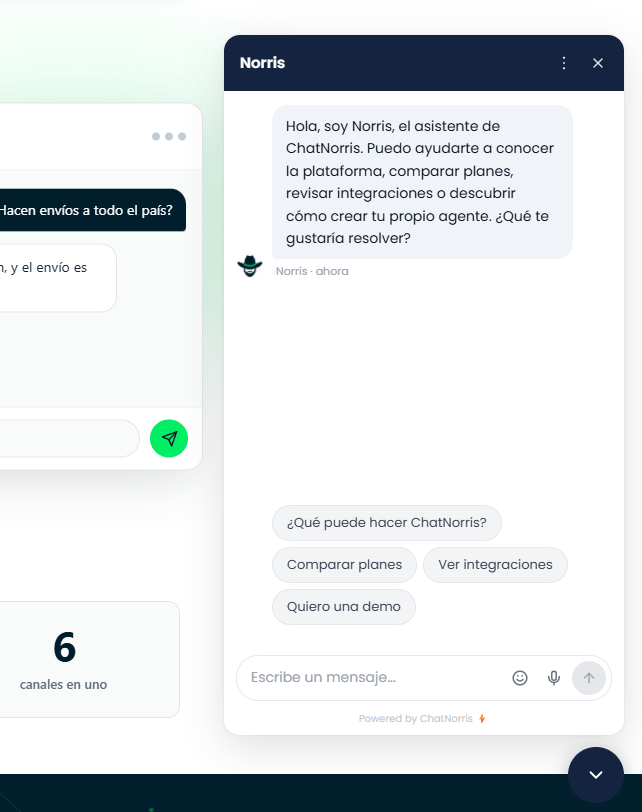
The ChatNorris widget is fully customizable. You can adjust its look so it matches your company’s visual identity. Customization is available at two points:- While creating the agent — in step 6 of the wizard, with a real-time preview.
- At any time — from the agent’s detail page, in the Customize tab.
Customization options
Primary color
The widget’s main color. It’s used for:- The header background (the chat’s top bar)
- The floating button that opens the widget
- The message send button
#RRGGBB) or use the visual color picker.
Text color
The Foreground color (in Branding → Colors) is the color of the text, icons and other elements shown on top of the primary color (in the header and the send button). It’s white by default and you can change it with the color picker. If you created the agent with your site’s URL, the creation wizard chooses it based on the luminance of the detected primary color: dark if the primary is light, white if it’s dark, to ensure contrast.Chat background
Besides the primary color, you can customize the background of the conversation panel: a solid color or a gradient (two colors). It’s set in Branding → Chat background.Advanced appearance
In Branding → Advanced appearance you can adjust, beyond colors:- Typography — Default, Serif, Monospace or Poppins.
- Panel roundness — a slider from 0 to 24px for the corners of the widget panel.
- Message density — Comfortable or Compact, to control the spacing between messages.
Agent name and welcome message
These fields live in the Texts sub-section (see the table below), not in Interface:- Agent name — the bot’s name that appears in the widget header. Examples:
"Sofía","AI Assistant". - Welcome message — the first message the agent sends automatically when the widget opens. Examples:
"Hi! How can I help you today?","Hi 👋 I'm here to answer your questions about our products."
Agent avatar (Bot Avatar)
In Branding → Bot Avatar you choose the image that appears next to the bot’s reply bubbles. You have two options:- Logo: uses the logo you uploaded in Branding → Logo.
- Custom: upload your own image (PNG, JPG, SVG or WebP, up to 2 MB).
Hide the button while the chat is open
In Branding → Chat Button, the Hide while chat is open toggle makes the floating button disappear while the chat is open: the chat panel moves down and takes its place, and the visitor closes it with the X in the header. With the chat closed, the button looks as usual. It’s off by default.Operator photo and name
When someone on your team replies to a widget conversation, by default the visitor sees the 🎧 icon and the bot’s name. If you turn on Show operator photo and name in Branding → Human operator, the widget shows the profile photo and first name of whoever replies. It’s off by default. Each person uploads their photo in My account → Profile (see Manage your account).Quick replies
Suggestion buttons that appear below the welcome message so the visitor can start the conversation with one click (up to 6). They’re configured in Texts → Quick replies. Each quick reply can optionally have an icon — there’s a built-in emoji picker to choose it without leaving the form.Floating quick replies
You can also show quick replies as buttons over the closed chat icon, so the visitor can start chatting without opening the widget first. Tapping one opens the chat and sends that question (as soon as the chat is ready, for example after a required Lead Form). In Texts, turn on Show over the chat icon on desktop and/or on mobile, and choose:- Behavior — show once every 24 hours per visitor, or on every visit.
- Delay duration — seconds from page load until the buttons appear (0 = immediately).
Loading text
The text shown while the agent is generating a reply (by default something like “Typing…”). Customizable from Texts → Loading text, up to 60 characters.Footer text
Free text in the widget footer, configurable from Texts → Footer text.How to edit the customization after creation
1
Go to the agent's detail page
In the sidebar, click Agents and then the agent you want to modify.
2
Open the Customize tab
There you’ll find five sub-sections:
3
Make your changes
Edit the fields you need. Changes are reflected in the preview in real time. The preview also shows the closed chat, with the hovering message and the floating buttons (without the delay, so you see them instantly).
4
Save
Click Save. Changes are applied immediately to the widget installed on your site.
What Configure includes
The Configure sub-section groups the rest of the behavior toggles:Hovering message
The hovering message appears over the closed chat icon. Clicking the message opens the chat; the × only closes it (and it’s always visible, also on touch screens). It’s configured in Configure → Hovering Message:If auto-open would open the chat before the hovering message (or the floating buttons) appears, the tab shows you a warning so you can adjust the delays. Auto-open no longer silences the hovering message forever: only opening the chat manually or closing it silences it for 24 hours.
The fields in this table don’t necessarily follow the same order inside the dashboard’s Configure tab — they’re grouped in blocks (branding, response rating, and “Other settings”, which brings together file attachments, AI sources and Google Analytics).
You don’t need to reinstall the snippet on your site when you change the customization. The widget loads its configuration dynamically from ChatNorris servers.
In the web widget, links the agent shares in its replies (
[text](URL)) are shown as real hyperlinks, clickable and opening in a new tab — and text in **bold** is shown in bold. The agent decides when to use this formatting; it’s not something you configure manually. This formatting is only rendered in the web widget: on WhatsApp, Instagram and Telegram, replies are sent as plain text.If the visitor reloads the page while they have an open conversation, the widget automatically restores the message history (and any pending Lead Form) on reload — the visitor doesn’t need to start the conversation over.
Lead form — request details before or during the chat
The lead form is no longer configured from the widget customization: it’s now an agent action. It’s configured fromMy agents → [your agent] → Actions → Lead Form, where you can define whether it’s required, which fields to ask for, when it should be shown and the form’s texts.
See the full guide in Agent actions.
The details are automatically recorded in the dashboard’s Leads section.
Frequently asked questions
Do widget changes apply immediately?
Do widget changes apply immediately?
Yes. When you save the changes, the widget updates on your website without reinstalling the code or changing anything in the HTML. Visitors who open the widget for the first time after the change will see the new configuration.
Can I use the same widget on several sites with different looks?
Can I use the same widget on several sites with different looks?
Currently, each agent has a single widget configuration. If you need different looks for different sites, you can create separate agents with different visual settings and use the corresponding snippet for each one.
What size and format should the avatar be?
What size and format should the avatar be?
We recommend a square image of at least 100×100 px. PNG, JPG, SVG or WebP up to 2 MB are accepted. If you turn on Circular shape, the widget crops it into a circle.
Can I hide the widget on certain pages?
Can I hide the widget on certain pages?
Yes, without touching code: from
Customize → Visibility → Hide on specific pages you can specify which pages of your site the widget shouldn’t show on. You can also set a visibility schedule from the same section.