

Analytics
The Analytics section shows how your agents are performing: how many conversations they get, how many the AI resolves on its own, how many go to a person and how long your team takes to reply.- All agents: side menu → Analytics.
- A single agent: My agents → [your agent] → Analytics.
Analytics is available from the Standard plan. On the Free plan the page appears locked with the message “Analytics is not included in your plan” and a button to see the plans.
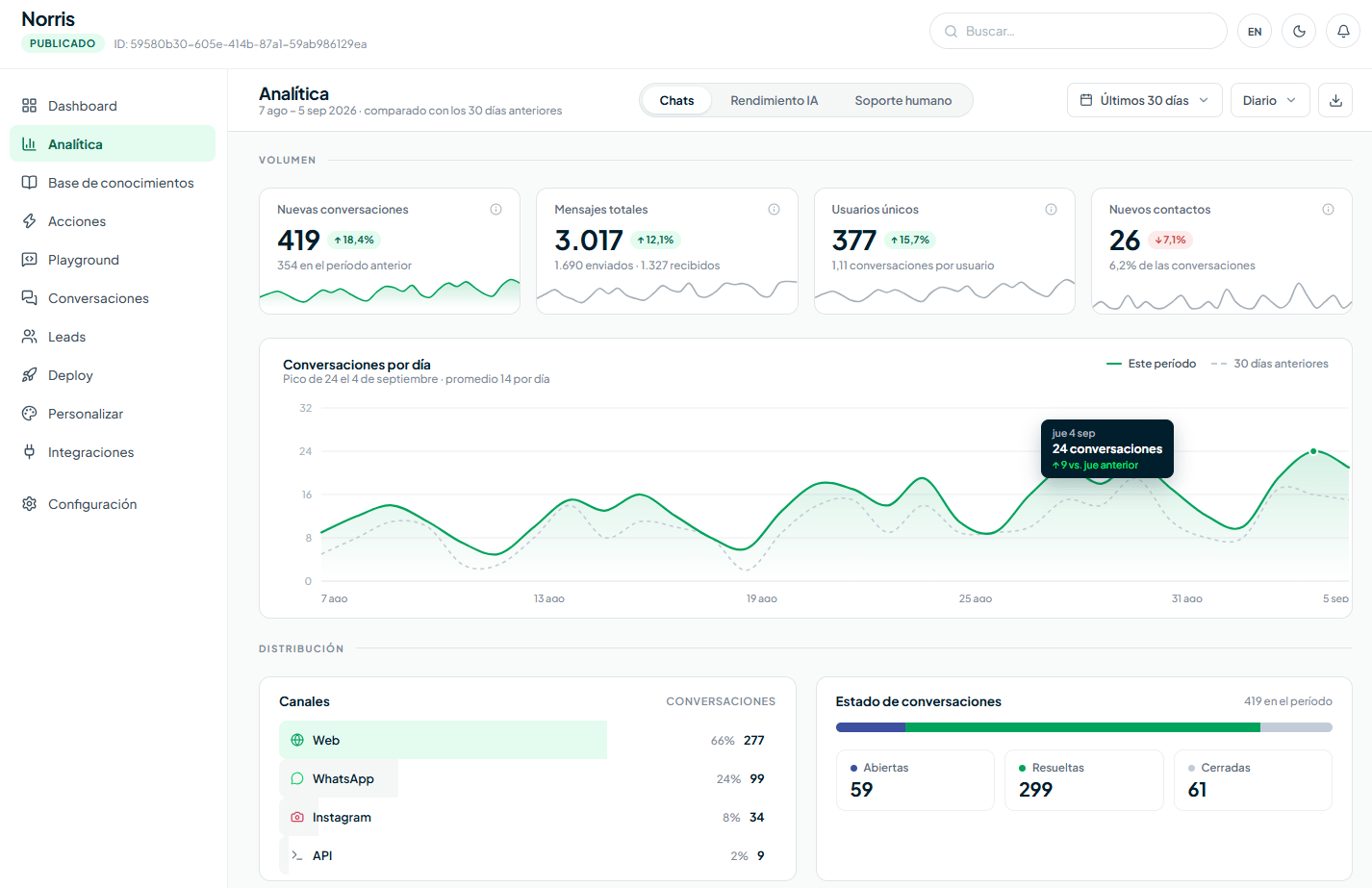
Top bar
At the top of the page you have:- Tabs: Chats, AI performance, Human support and Reviews.
- Agent (overview only): All agents or a specific one.
- Period: Last 7, 14, 30 (default), 60 or 90 days.
- Grouping: Daily or Weekly, for the charts.
Chats tab
Volume
Below, the Conversations chart compares this period with the previous one and shows the peak and the daily average.
Distribution
- Channels — conversations by channel (Web, WhatsApp, Instagram, Telegram, Messenger, Email, Google Reviews, API).
- Conversation status — how many are Open, Resolved and Closed.
- When they chat the most — heat map of visitor messages by day of the week and hour (always for the last 90 days). It helps you know when to have more people available to handle handoffs.
Audience
- Top countries — where conversations come from.
- Conversation starting pages — which pages of your site chats are opened on.
- Captured leads — the period’s leads with name, email, phone, channel, agent and date. View all takes you to the Leads section.
Agent comparison
In the All agents view, the Chats tab adds a table with one row per agent: conversations, deflection (percentage resolved without a person), escalations, credits consumed and a trend line.AI performance tab
Autonomous resolution
- Deflection rate — percentage of conversations the AI resolved without needing a person.
- Response satisfaction — percentage of replies visitors marked as Helpful with the widget’s rating buttons, and how many received a rating.
Escalation to humans
- Escalation rate — percentage of conversations that went to a person.
- Escalated conversations — how many there were in the period.
- Main reason — still under construction.
- AI credit usage — credits used by the agent’s replies and the average per conversation.
Human support tab
Measures your team’s handling of escalated conversations (handoff). Times are counted from when the visitor asks to talk to a person.
Each metric shows the median and the p90 (the time that 90 % of cases don’t exceed).
- First reply by day — chart with a target line. In a single agent’s view, the target is the first reply time you set in its Human Handoff Action; if there isn’t one, 3 minutes is used.
- Load per human agent — how many handoffs each person on your team handled and their reply time.
Reviews tab
Shows the Google reviews of the locations connected through the Google Reviews channel.
Below are Reviews per day and Average rating per day, the Star distribution, the Sentiment (positive, neutral or negative), the Most mentioned topics and the By location table with reviews, rating, answered and to approve for each location.
Frequently asked questions
Do the metrics include all channels?
Do the metrics include all channels?
Yes. The numbers combine web, WhatsApp, Instagram, Telegram, Messenger, Email, Google Reviews and API. The Channels card in the Chats tab shows how many conversations came through each one.
Can I see analytics for a single agent?
Can I see analytics for a single agent?
Yes. In the overview, choose the agent in the selector in the top bar, or go to My agents → [your agent] → Analytics.
Can I export analytics data?
Can I export analytics data?
There’s no direct export of analytics. You can export the leads list as CSV from the Leads section (Premium plan).
I'm on the Free plan, what do I see?
I'm on the Free plan, what do I see?
The Analytics page appears locked. To see it you need the Standard plan or higher.