

Notifications
ChatNorris alerts you about what happens in your conversations and your account through three channels: email, the dashboard bell and push notifications (in the browser or on your phone with ChatNorris Inbox). For each event you choose which channels it alerts through, at the organization level, and each agent can change its conversation events. In addition, each team member can adjust which alerts they receive.Events and channels
From Settings → Notifications you choose, for each event, whether it alerts by Email, Bell and/or Push: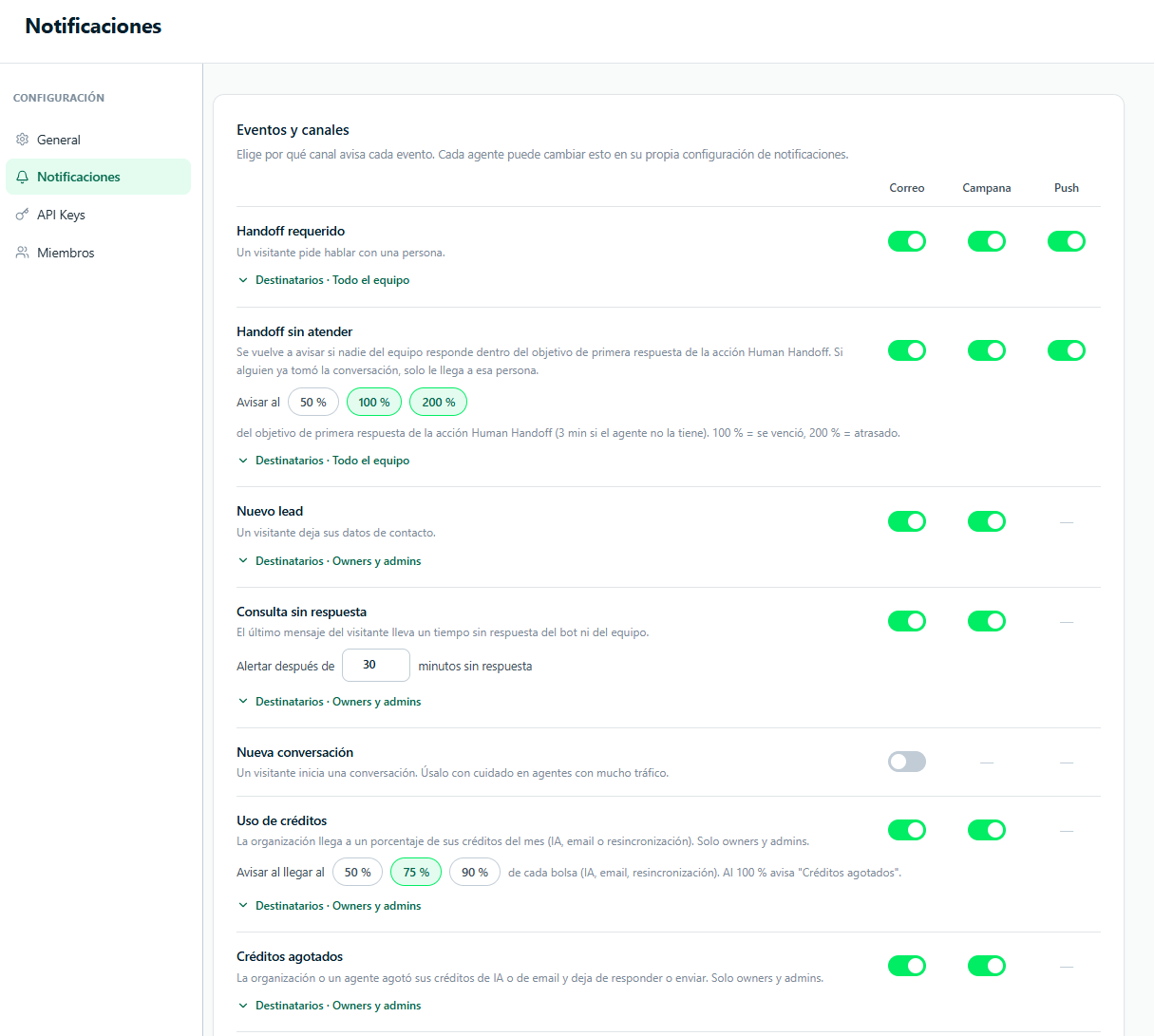
If you use the Google Reviews channel, each review waiting for your approval triggers a Review to approve alert in the bell. That alert follows the Handoff requested settings. 1 or 2-star reviews trigger Negative review instead, with its own row in the table. When an import of past reviews finishes, you get a single alert with the result.
Only Owners and Admins can change these settings. The rest of the team sees them in read-only mode.
Email recipients
Each event can have its own list of recipients: choose team members or type any other email. If you leave the list empty:- Handoff and Unattended handoff alert the whole team that handles conversations (Owners, Admins and Operators). An Operator limited to some agents only receives alerts for those agents (Manage your team).
- New lead, Unanswered question, New conversation, Credit usage and Credits used up use the organization’s Default emails; if there are none either, they alert the Owners and Admins.
Since New conversation is on by default and, without its own recipients, uses the default emails (or the Owners and Admins), turn off its Email channel if you don’t want to receive these emails or the daily channel digest.
New conversation and daily channel digest
In the New conversation event, the Send option defines when the email arrives:- On close or resolve, with the last messages (default) — the email includes the last 4 messages. It doesn’t alert about conversations that were passed to a person (they have their handoff alert) or those that left a lead (the new lead email arrives). If the agent has inactivity close set to Never, it only alerts when the conversation is resolved.
- When the conversation starts — the previous behavior: an email as soon as the conversation starts.
Per-agent settings
InMy agents → [your agent] → Settings → Notifications each agent can change the channels and recipients of its conversation events (handoff, unattended handoff, new lead, unanswered question and new conversation), or leave each one on Inherit to use what you defined for the organization. Credit events are only configured at the organization level.
Unattended handoff
If nobody on the team replies to a handoff in time, ChatNorris alerts again. The reference time is the First reply target of the agent’s Human Handoff action (3 minutes if you didn’t configure it).- By default it alerts at 100 % of that target (overdue) and at 200 % (late). In Alert at you can add an alert at 50 % or remove one.
- If someone already took the conversation, the alert only goes to that person.
- It stops alerting as soon as someone on the team replies or the conversation is closed.
- If you don’t configure channels of its own for this event, it uses the same channels and emails as Handoff requested.
Your personal preferences
From My account → Notifications each person decides which alerts they receive in their bell and by push:- What I receive — turn off the bell or push for each event (handoff, unattended handoff, visitor message, new lead, unanswered question; usage and credits used up only for Owners and Admins).
- Which conversations — All agents, Only some agents, or Only my conversations (those assigned to you and those waiting unassigned, so you don’t miss new handoffs). Credit alerts don’t depend on the agent.
Personal preferences can only turn off alerts: what the organization or the agent has turned off can’t be turned on from here. They also don’t change emails, which are organization or per-agent lists.
Push notifications in the browser
Push notifications alert you in the browser when a handoff happens (and the other events with push turned on), even if you have the ChatNorris dashboard in the background.Turn them on
1
Turn them on from the bell
Open the dashboard bell and turn on push notifications in this browser. The browser shows a permission request: click Allow.
2
If you blocked the permission
You can enable it manually:
- Click the lock or info icon in the browser’s address bar.
- Find the Notifications option.
- Change the permission to Allow.
- Reload the dashboard page.
Push notifications are per browser and device. If you use ChatNorris on several devices, you need to turn them on on each one separately.
Notification bell: individual inbox per person
The dashboard bell (notifications icon in the top bar) has an individual inbox: each team member sees their own notifications, with their own unread counter, and can mark only theirs as read without affecting what their teammates see. The bell history can be filtered, and when a handoff comes in a pop-up alert also appears in the dashboard. Credit alerts only reach people with the Owner or Admin role — the rest of the team doesn’t see them in their bell.ChatNorris Inbox: install it as an app on your phone
ChatNorris can be installed as an app (PWA) on your phone to handle conversations from there, with push notifications. Besides the handoff alert, with the app installed you get a push for every message the visitor writes while the conversation is in human mode. It goes to the assigned person or, if nobody has taken it yet, to the whole team (if the conversation has a team, only to its members and the Owners/Admins). Available on all plans. How to install it on iPhone and Android, turn on notifications and use the mobile view: ChatNorris Inbox (mobile app).Credit usage alerts
Usage alerts notify Owners and Admins when the organization reaches a percentage of its monthly credits, in each bucket separately (AI, email and resync). This gives you time to react before the agent stops replying.- In the Credit usage event, choose in Alert when reaching the percentages you want (50 %, 75 % and/or 90 %).
- At 100 %, the Credits used up event alerts.
- Each alert arrives only once per month and per percentage.
- The email recipients are those of the event or, if it has none, the organization’s Default emails.
Recommended configuration example
To never miss a limit:- Credit usage: Email + Bell, at 75 % and 90 %.
- Credits used up: Email + Bell.
- Default emails: the account owner + whoever manages the plan.
AI model change notice
If ChatNorris schedules a replacement of an AI model your agents use with another one (for example, because the provider retires it), Owners and Admins receive a notice in the bell and by email before the change date, with the current model, the new one and the affected agents. You’re also notified if the scheduled change is canceled. In the meantime, you can choose another model fromMy agents → [your agent] → Settings → AI.
This notice is mandatory: it arrives even if you turned off other notifications in the organization, the agent or your personal preferences, and it can’t be turned off.
Frequently asked questions
Do usage alerts apply to the whole account or per agent?
Do usage alerts apply to the whole account or per agent?
Usage alerts look at the total credits used by the whole organization (all agents together), because the monthly buckets are per account. Credits used up also alerts when an agent reaches the credit limit you set in Advanced settings → Limits.
Do all team members see the same notifications in the bell?
Do all team members see the same notifications in the bell?
No. Each person has their own inbox in the bell and can mark their notifications as read without affecting their teammates. In addition, each person can limit their alerts from My account → Notifications. Credit alerts only reach Owners and Admins.
Can I get the handoff notification by email?
Can I get the handoff notification by email?
Yes. Turn on the Email channel in the Handoff requested event (and, if you want, in Unattended handoff) from Settings → Notifications, or only for one agent from its notification settings.
What's the difference between browser push and ChatNorris Inbox push?
What's the difference between browser push and ChatNorris Inbox push?
Both use the same Push channel. With ChatNorris Inbox installed on your phone you also get an alert for each visitor message while the conversation stays in human mode — useful so you don’t lose track of a conversation that’s already assigned, not just the initial handoff moment.
Push notifications don't arrive even though I turned them on
Push notifications don't arrive even though I turned them on
Check:
- That the event has the Push channel turned on in the organization (or the agent) and that you haven’t turned it off in My account → Notifications.
- That the browser has notification permission for
chatnorris.ai. - That the operating system isn’t blocking the browser’s notifications (on macOS: System Preferences → Notifications; on Windows: Settings → System → Notifications).
- On your phone, that ChatNorris has notifications allowed in the settings. If your phone hides previews on the lock screen, the alert doesn’t show the message text.