

Live chat and handoff to an agent
When the AI agent detects that a request needs a person, it transfers the conversation to your team. This process is called handoff. From that moment the bot stops replying and the conversation waits for someone on the team to handle it.When does the agent transfer?
The agent decides the handoff based on what you configure in the Human Handoff action (My agents → [your agent] → Actions → Human Handoff):
- When to use — free text that tells the agent when it should transfer (which topics or situations, or whether it should try to resolve first).
- Information to Gather — details the agent should get from the visitor before transferring, so your team has context as soon as they open the conversation.
- Team that receives the handoff — optional: routes handoffs to one of the agent’s teams. Its members and the Owners/Admins get the alert, and only they can take the conversation. Without a team, anyone can take it.
- Business hours — optional: outside business hours the agent doesn’t transfer; it shares the business hours, tries to resolve the request and asks for contact details so the team can reply later.
- First reply target — the reference time for alerting if nobody handles the handoff (see below).
The handoff is always started by the AI agent. If you want to handle a conversation the bot is still managing, you can reply to it directly or assign it to yourself from the Details panel (see below).
Get the handoff alert
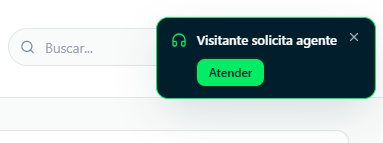
When a handoff happens:- A notification appears in the portal’s bell, along with a pop-up alert.
- In the Conversations list, the conversation is marked as Waiting for agent.
- If you have push notifications turned on (in the browser or in ChatNorris Inbox on your phone), you get an alert on your device even if the portal isn’t in the foreground.
- If the event has the Email channel turned on, an email arrives too.
- If nobody replies within the first reply target, ChatNorris alerts again (unattended handoff).
Handle a transferred conversation
1
Find the conversations waiting for a person
In the side menu, click Conversations, open Filters and turn on Needs agent intervention. You’ll see only the open conversations waiting for someone on the team. To handle the most important ones first, sort by Priority.
2
Open the conversation and read the summary
You’ll see the message history and, above the thread, the AI-generated Handoff summary with the most relevant points.
3
Reply to the visitor
Type in the field at the bottom and press Enter (or Send). Your first reply takes the conversation: if nobody had it assigned, it’s assigned to you and switches to Human mode. Messages reach the visitor in real time.You can also take it or assign it to someone else without writing, by choosing someone in Assigned agent in the Details panel.If the conversation has a team you’re not part of, you can see it, but only its members and the Owners/Admins can take it, assign it or reply.If the customer sends you a voice note while you’re helping them, you see it with a player and the transcription below, so you can read it without listening. See Voice notes.
4
Resolve or close the conversation
When the request is resolved, use the check icon to mark it as Resolved, or change its Status to Closed in the Details panel. A closed conversation no longer accepts replies.
From your phone
With ChatNorris Inbox installed on your phone you see the conversations waiting for a person in the Waiting tab, take them with Take and reply from there. You also get a push for every new message from the visitor while the conversation stays in human mode.Handoff summary
When the agent transfers a conversation, the AI generates a summary with the most relevant points and the visitor’s confirmed contact details. You’ll see it above the thread when you open the conversation.Turn on push notifications
So you don’t miss any handoff:- Open the portal’s bell and turn on push notifications in this browser.
- When the browser’s permission request appears, click Allow.
- If you blocked the permission, enable notifications for
chatnorris.aifrom your browser settings. - To handle conversations from your phone, install ChatNorris Inbox.
Push notifications work even if the portal is in the background, as long as the browser is open.
Frequently asked questions
Can more than one person handle the same conversation?
Can more than one person handle the same conversation?
The conversation is assigned to a single person: the first one to reply or the one chosen in Assigned agent. You can reassign it at any time from the Details panel. If the conversation has a team, only its members and the Owners/Admins can reply.
Does the bot reply again after the conversation is closed?
Does the bot reply again after the conversation is closed?
Not in that conversation: once closed, it no longer accepts replies. If the same visitor writes again, a new conversation is created and the bot handles it from the start.
Does the visitor know they're talking to a person?
Does the visitor know they're talking to a person?
Yes. In the web widget, the header shows that an agent is connected and your team’s messages are shown as agent messages, different from the bot’s.
What happens if nobody handles a handoff?
What happens if nobody handles a handoff?
The conversation keeps waiting for a person and the bot doesn’t reply. If nobody replies within the First reply target, ChatNorris alerts again (unattended handoff). If the conversation goes past the channel’s inactivity time without activity, it closes on its own, like any other conversation.
Can I see who handled each conversation?
Can I see who handled each conversation?
Yes. The Details panel shows the Assigned agent, and the Participants section lists everyone on the team who took part.