

AI agents
An agent in ChatNorris is an artificial intelligence assistant that answers questions based on your knowledge base. You can create several agents, each with a different personality and purpose.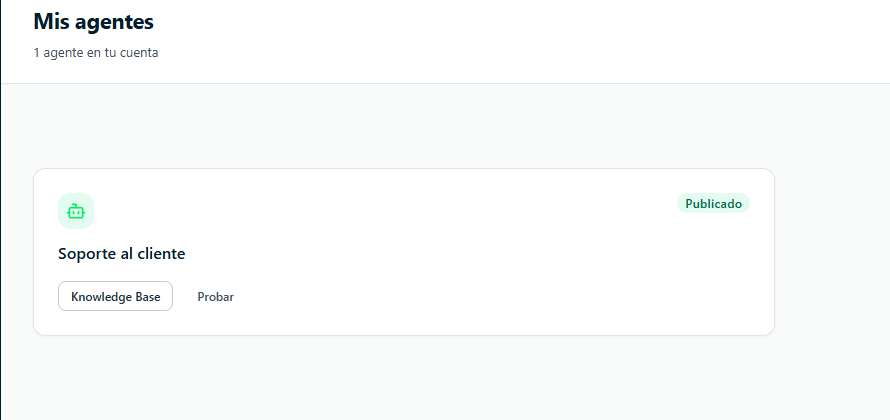
My agents
In My agents, each agent appears as a card with its avatar (the same one as the widget), type, status (Published or Draft), and connected channels:- Published agents show their conversations from the last 7 days (with the change versus the previous week), the percentage resolved by AI, the leads and, in orange, how many people are waiting for someone on your team.
- Drafts show the To publish checklist (Knowledge Base: at least one source; Customize: you saved changes in Customize or uploaded your logo or avatar; Test in Playground: you sent a message in the Playground or there was a real conversation; Connect a channel: the agent is published) and the Continue → button, which takes you to the first pending step.
- Each card’s menu has Test in Playground, Settings, Publish/Unpublish widget, and Delete.
Agent types
When you create an agent, you choose a type that pre-configures the system instructions with a template optimized for that use case. The available types include: customer support, sales, lead generation, e-commerce, technical support, SaaS onboarding, booking and scheduling, HR, real estate, healthcare, education, restaurant, and more. You can see the full list and their descriptions in the creation wizard. After you create the agent, you can freely edit the system instructions to fit your specific needs.KB-Only mode (knowledge base only)
KB-Only mode limits the agent to answering only with the information indexed in your knowledge base. When it’s on:- The agent doesn’t use the AI model’s general knowledge.
- If it has no information about something, it says so clearly and suggests contacting the team.
- Ideal for support assistants where accuracy and control are the priority.
Create an agent
In My agents, click New agent. A 6-step wizard opens:- Type — you choose a template based on what the agent will do and, if you want, your site’s URL.
- Analysis — ChatNorris scans your site to detect your brand and draft the instructions.
- Business — you confirm your business’s name and description.
- Training — your site’s pages (up to 60) are added to the knowledge base, or you skip this and add sources later.
- Model — model, KB-Only mode, and agent instructions.
- Widget — color, logo, agent name, and welcome message.
Agent statuses
To publish or unpublish the widget, use the agent’s Deploy tab or its card menu in My agents (Publish widget / Unpublish widget).
An agent’s workspace
When you open an agent, its configuration is organized in tabs:Dashboard
The Dashboard (the general one, in the side menu, and each agent’s) is an operational view, available on all plans:- Live inbox — Open, Waiting for a human (with the oldest wait), Unassigned, and Unread conversations. Each number opens Conversations with that filter applied.
- Need attention — the oldest handoffs first, then unread conversations.
- Knowledge base health — sources with errors or stalled, with a link to the knowledge base.
- 7-day indicators versus the previous 7: conversations, resolved by AI (without handoff), leads, and AI credits.
- In the general Dashboard, also: Needs setup (sources with errors, expired or failing integrations, agents without channels), the month’s AI credits per agent, and a table of agents.
Deploy (agent channels)
The Deploy tab groups the agent’s channels into Connected, Available, and Not in your plan. For each connected channel you see the account, the language, the inactivity closure, and the conversations from the last 7 days, plus an Active switch to pause it (or publish/unpublish the widget) without disconnecting it. A summary bar lets you copy the widget code.- WhatsApp, Instagram, Telegram, and Messenger are connected and configured from a side panel (language, inactivity closure, Telegram webhook status, and disconnect). See WhatsApp, Instagram, and other channels.
- Web has its own page with the widget installation and the inactivity closure. See Install the widget.
- Email has its own page with the connection, the behavior, the signature, and the forwarding guide; if it isn’t connected yet, a 3-step wizard. See Email channel.
Edit an agent
- Go to My agents and click the agent you want to change.
- In Settings → General you can change the name, the description, and the time zone. In Settings → AI you edit the model, the temperature, the max tokens, the Limit responses to the knowledge base option (KB-Only mode), and the System Prompt / Instructions, which you can start from a template with Explore templates.
- Save your changes with the Save changes button.
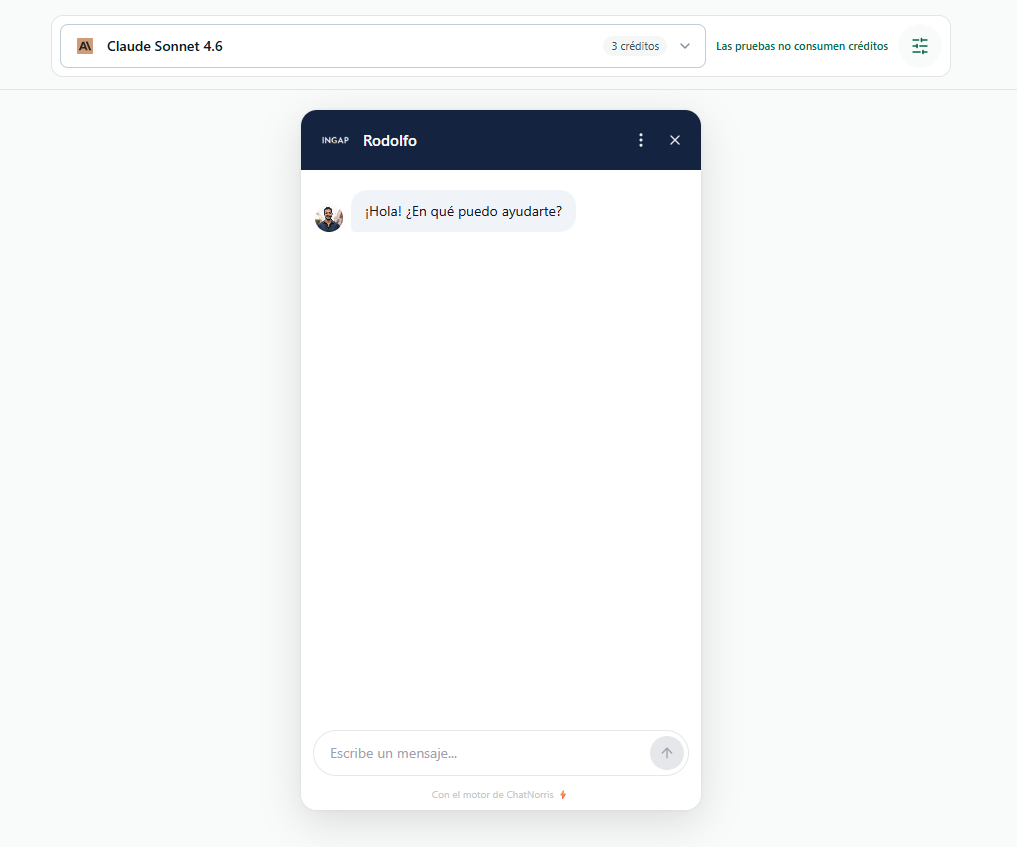
Test an agent
Before deploying it, you can test the agent directly from the portal:- Open the agent.
- Click the Playground tab.
- Write messages as if you were a customer and check the answers.
Install the widget on your website
Once it’s published, you can get the installation code:- Open the agent and go to the Deploy tab.
- Copy the HTML snippet from the web widget card.
- Paste it into your site’s HTML, before the closing
</body>tag.
Frequently asked questions about agents
How many agents can I create?
How many agents can I create?
It depends on your plan. The free plan includes 1 agent. Paid plans include more. Above My agents you see how many agents of your quota you’re using, and your plan in Billing & usage.
Does the bot answer questions that aren't in my knowledge base?
Does the bot answer questions that aren't in my knowledge base?
It depends on KB-Only mode. If it’s on (which is what the creation wizard leaves by default), the agent answers only with your knowledge base and, if it has no information about something, says so. If you turn it off in Settings → AI (Limit responses to the knowledge base), the agent can use its general knowledge when your knowledge base has no relevant information.
Can I have agents in different languages?
Can I have agents in different languages?
Yes. Set the language in the system prompt and add content in that language to the knowledge base. The bot will answer in the language the user writes in, if the content allows it.
What's the difference between the available AI models?
What's the difference between the available AI models?
They vary in capability, speed, and cost in credits. Claude Haiku 4.5 is the recommended default: fast, accurate for customer service, and it uses 1 credit per response. The more capable models, such as Claude Sonnet 4.6, 5, or 5.5 (3 credits), are best for complex queries or actions that create something real. See the full table in AI models and credits.