

Conversations
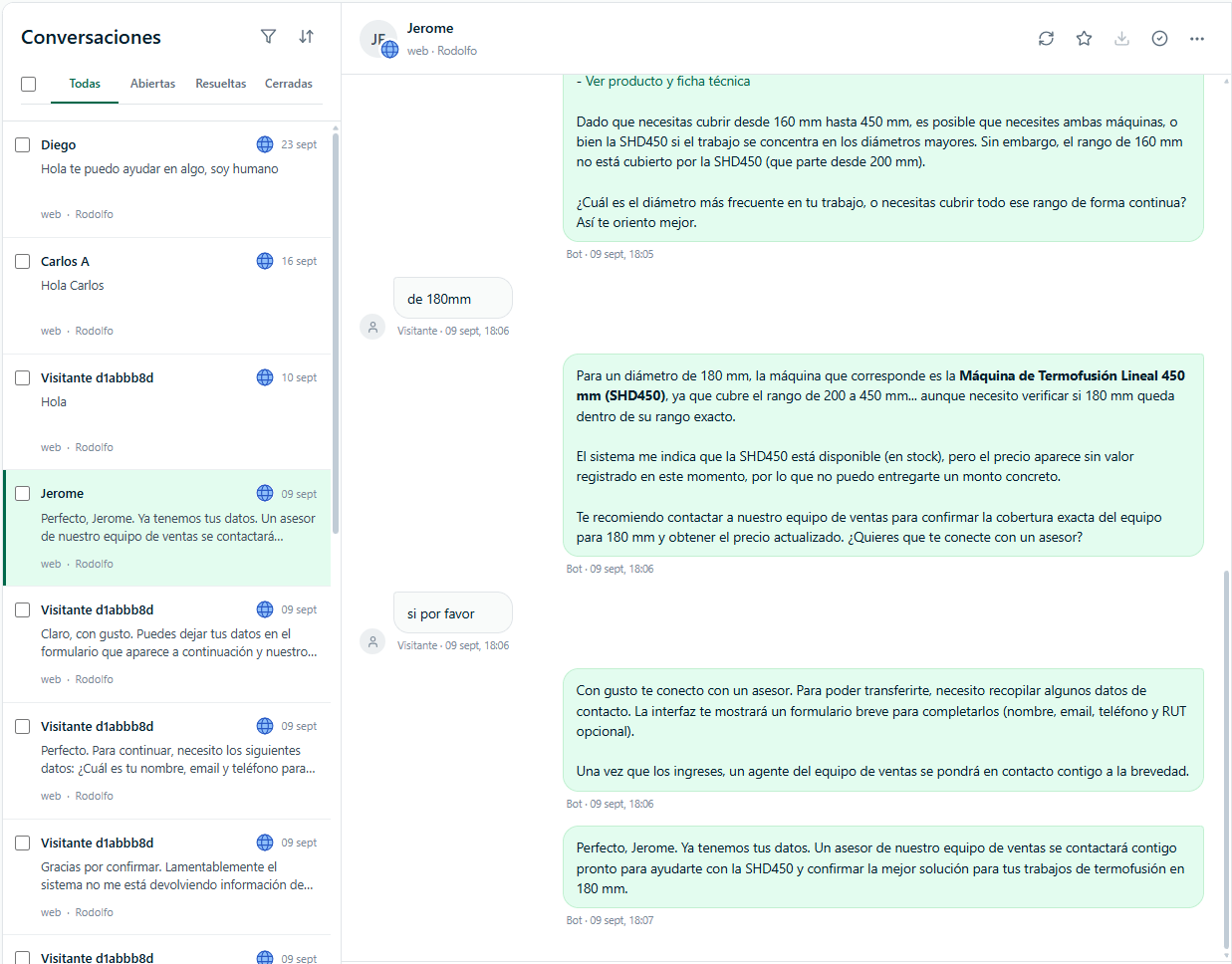
The Conversations section brings together, in a single inbox, the chats from all your agents and channels: web widget, WhatsApp, Instagram, Telegram, Messenger, Email and API, plus the Google reviews of your locations. From here you review what’s happening, reply when needed, and assign, prioritize and close conversations. Each agent also has its own view inMy agents → [your agent] → Conversations.
Status and handling mode
Each conversation has two pieces of information that work together: Status (the conversation’s lifecycle), which are also the list tabs:
The All tab shows conversations in any status.
Handling mode (who is replying):
The conversation list
Each row shows the visitor’s name (or “Visitor” and an identifier if they didn’t leave one), the channel logo, the date of the last activity, a preview of the last message, the agent, the team (if any), the priority and up to 3 labels. A dot means the conversation is unread and a star means it’s marked as important.Sort
With the sort button you choose between Recent activity, Oldest activity, Created date and Priority. When sorting by priority, Urgent ones come first, then High, Medium, Low, and finally those with no priority; among conversations with the same priority, the one that has been waiting longest comes first.Filter
The Filters button opens a panel with:- Unread, Important and Needs agent intervention (open conversations waiting for a person).
- Assignment — Assigned to me or Unassigned.
- Contact — search by the visitor’s name, email or phone.
- Priority — None, Low, Medium, High or Urgent.
- Assigned agent — the team member in charge.
- Team — Any team, No team, My teams or a specific team (see teams per agent).
- Labels — shows conversations that have any of the chosen labels.
- Channel — web, WhatsApp, Instagram, Telegram, API, Messenger, Email or Google Reviews.
- Created — date range (From / To).
Unread conversations
A conversation is unread for you when the visitor wrote something you haven’t seen yet, regardless of its status (even if it was already closed due to inactivity). Each person has their own read status: opening it yourself doesn’t mark it as read for your teammates. The Conversations icon in the sidebar shows how many unread conversations you have. Opening a conversation marks it as read. From the thread’s More actions menu, Mark as unread sets it back to pending and returns you to the list.Bulk actions
Check the boxes of several conversations (or the top checkbox to select all of them) and use the bar that appears:- Close — closes the selected conversations.
- Download — downloads their transcripts (Premium plan only).
- Delete — permanently deletes them along with their messages. It asks for confirmation and can’t be undone. Owners and Admins only.
- Under More actions: Mark as important, Mark as unimportant, Mark as read and Mark as unread.
The conversation thread
Click a conversation to see its full history. The visitor’s messages appear on the left; those from the AI agent and your team, on the right. Below each message you see who sent it and the time: bot replies show the Bot Avatar and the agent’s name, and your team’s replies show the profile photo and name of whoever replied. Attached images show directly in the thread and PDFs appear as a file to open.Voice notes in the thread
Voice notes that arrive through WhatsApp, Instagram, Messenger or Telegram show as a player with a play button, a progress bar and the duration. Below it, the Transcript appears in small print; that’s what the agent read to reply. If the audio wasn’t transcribed, instead of the text you’ll see the reason, for example Audio too long to transcribe or The audio could not be understood. If the customer wrote text along with the audio, it also appears. The conversation preview in the list shows the transcript. See Voice notes. On Instagram and Messenger, if the visitor reacted to a story or mentioned your account in theirs without writing any text, the thread shows Reacted to a story or Mentioned the account in their story. The agent replies to those reactions briefly and without making up the content of the story.Internal cart notes
If the agent builds a cart with the Payment Action or a connected store, each change is logged in the thread as a yellow note Internal note · only your team sees it, right after the visitor message that triggered it: items added or removed, quantity or price changes, payment link created or resent, payment confirmed and cart abandoned. Each note has Show cart to expand the lines and the total. The visitor never sees these notes and the AI agent doesn’t receive them either. If there was a handoff to a person, at the top of the thread you’ll see the AI-generated Handoff summary. At the top of the thread you have:- Refresh — reloads the conversation.
- Star — Mark as important or remove it.
- Export conversation — downloads the transcript as a text file. Available on the Premium plan.
- Mark as resolved (check icon) — changes the status to Resolved; if it’s already resolved, it reopens it.
- More actions — Copy link and Mark as unread.
Google reviews
With the Google Reviews channel, each review of a connected location comes in as its own conversation. The thread shows the review with its stars and the View on Google link, and below it the Suggested reply box with the agent’s draft:- Publish — publishes the text on Google, with your changes if you edited it.
- Regenerate — requests a new draft (uses credits again).
- Discard — deletes the draft without publishing anything.
Details panel
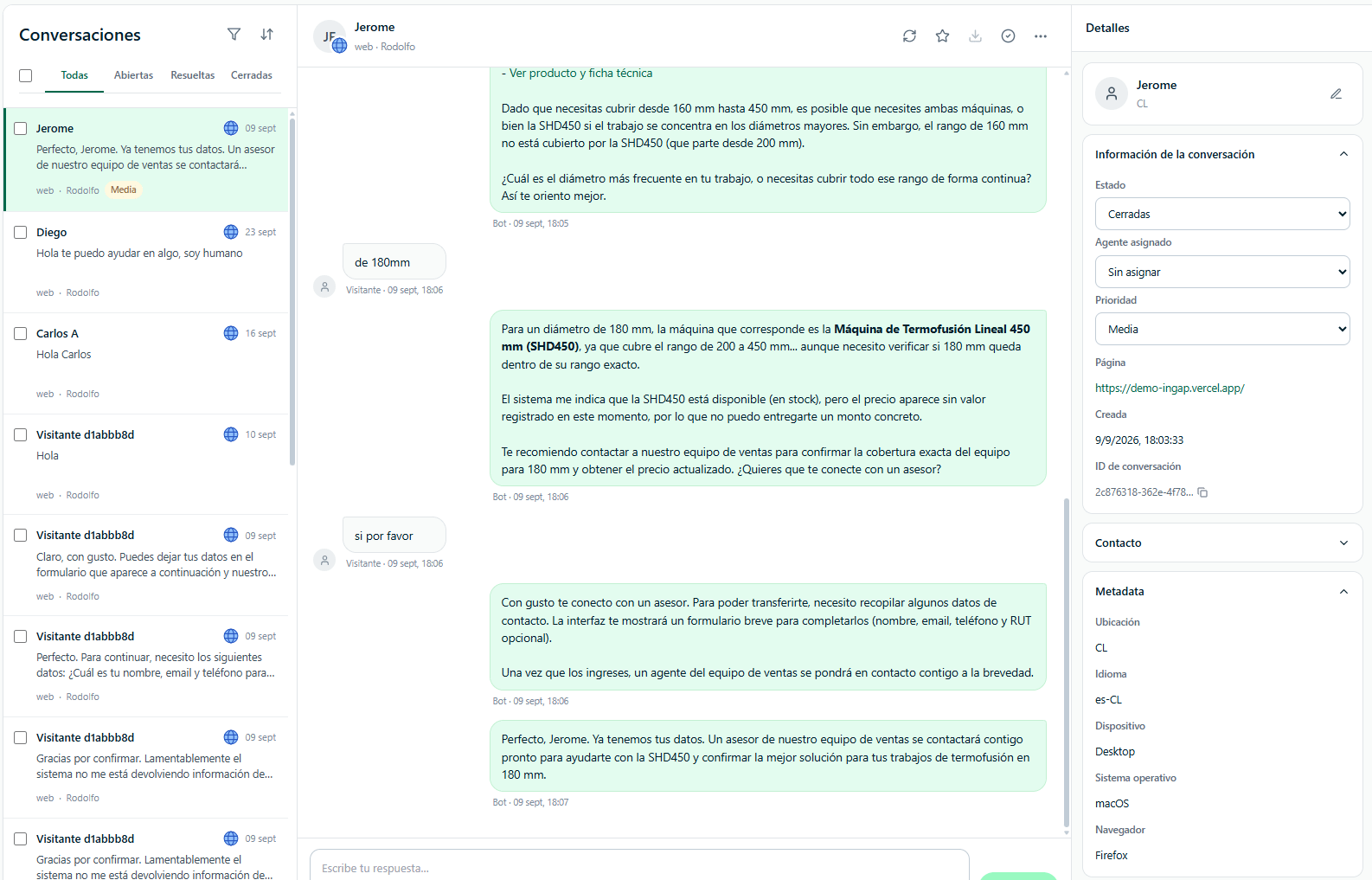
To the right of the thread is the Details panel:- Visitor name — you can edit it with the pencil.
- Payments — only appears if the conversation has confirmed payments: amount, item and date of each payment.
- Chat information:
- Status — Open, Resolved or Closed. This is where you close a conversation.
- Assigned agent — assigns the conversation to a team member (or leave it Unassigned). Assigning it switches it to Human mode.
- Team — the team handling the conversation. Owners and Admins can create a new one with + Create team.
- Priority — None, Low, Medium, High or Urgent. Priority is set manually.
- Labels — see below.
- Page (the page of the site the visitor wrote from, in the web widget), Created at and Conversation ID (with a button to copy it).
- Contact — the visitor’s details (email, phone, company, job title, website, address, etc.). Only properties with a value are shown: use Add to add a missing one and the pencil to edit an existing one (Enter saves, Escape cancels). Clearing a value removes it.
- On messaging channels, ChatNorris only fills in the details the channel provides: the number on WhatsApp, the @username on Telegram, and the name and @username on Instagram. It only fills empty fields (it never replaces what the visitor confirmed or your team edited) and doesn’t create a lead on its own. Telegram username and Instagram username appear as read-only rows with a link to the profile.
- Returning customer — appears when the same person (same email or phone) has other conversations in your organization: a summary (conversations, purchases and total), Details from other conversations (with the channel and date of each detail) and Other conversations (up to 5). Conversations aren’t merged: confirm with the person before using that information. See Leads → Returning customers.
- Metadata — the visitor’s location, language, device, operating system and browser.
- Satisfaction survey — how many of the agent’s replies received a positive or negative rating in the widget.
- Usage — the AI credits the conversation used.
- Participants — the team members who took part.
- Variable values — the values saved during the conversation.
If the conversation belongs to a team you’re not part of, you can view it, but only members of that team (or an Owner/Admin) can take it, assign it or reply.
Conversation labels
You can classify conversations with your own labels (for example “Complaint”, “Sale”, “Urgent”). Labels belong to the whole organization, so they work for filtering the inbox of all agents.- Assign — in the Details panel, Labels section, use the search box to find a label and check or uncheck it (by clicking or with the keyboard: arrows, Enter and Esc). A conversation can have several labels, up to 20. Any team member, including the Operator role, can assign them.
- Create — Owners and Admins create a new label by typing its name in the search box and choosing Create ”…”; it automatically takes the next color in the palette.
- Manage — at the bottom of the search box, Manage labels lets Owners and Admins rename, recolor or delete labels. Deleting a label removes it from conversations, but doesn’t delete the conversations.
Close and resolve conversations
- Resolve — use the check icon at the top of the thread, or choose Resolved under Status in the Details panel. If you reply afterwards, the conversation becomes open again.
- Close — choose Closed under Status in the Details panel, or select several in the list and use Close. A closed conversation no longer accepts replies.
- Inactivity close — conversations with no activity close on their own according to each channel’s inactivity close setting, configured in
My agents → [your agent] → Deploy. This also applies to conversations waiting for a person.
Paid conversations
If a conversation closes due to inactivity after a confirmed payment (with the Payment action or the cart), and the visitor didn’t write again after paying, it moves to Resolved instead of staying closed. The change is applied in the daily review, so for a few hours it may show as closed.Frequently asked questions
Do conversations update in real time?
Do conversations update in real time?
Yes. The list and the thread update automatically: new messages appear within a few seconds without reloading the page. You can also use Refresh in the thread.
Can I search for a conversation?
Can I search for a conversation?
Yes. In Filters → Contact you can search by the visitor’s name, email or phone, and combine it with the other filters (channel, dates, labels, etc.). There’s no search by message text.
Can I export a conversation?
Can I export a conversation?
On the Premium plan, yes: Export conversation in the thread downloads the transcript, and Download in the bulk actions bar downloads several at once. On other plans the buttons are disabled.
How do I know if a conversation is waiting for my attention?
How do I know if a conversation is waiting for my attention?
In the list they’re marked as Waiting for agent, and the Needs agent intervention filter shows only those. ChatNorris also alerts you through the bell, push and/or email, depending on what you configure in Notifications.
To learn how to handle a conversation as a team member, see:
Live chat and handoff to an agent
How to take a transferred conversation and talk directly with the visitor.